How to Run an LLM Locally on Your Laptop Without Paying for an API
I walk through running open-weight language models on a laptop using Ollama, explain what GGUF quantization is, and show you which model sizes actually fit in consumer RAM.
The first time I ran a language model on my own laptop, offline, with no API key, I sat there and waited for a response that I was completely sure wasn’t going to come. It came. And the whole mental model I had about AI — that it lives somewhere in a data centre you pay to reach — cracked a little.
You can run genuinely capable models on a mid-range laptop today. Not tiny toy models that feel broken, but actual 7B to 13B parameter models that write code, summarise documents, and answer complex questions. The key is understanding what quantization does to RAM requirements, and picking the right tool for the job.
I’m going to walk through how this works from the first install to a working local chat session, explain the quantization decisions you’ll face, and be honest about where local models still fall short of the cloud.
On this page
- Why run a model locally at all?
- How quantization shrinks a model to laptop size
- Getting started with Ollama
- Choosing the right model for your hardware
- What you can realistically do with a local model
- What local models can’t match yet
- Local is a tool, not a replacement
Why run a model locally at all?
The obvious reason is cost. API calls add up fast, especially if you’re embedding AI into a personal project, a script that runs on a schedule, or just experimenting heavily during a weekend. A local model costs nothing per request after the initial download.
Privacy is the less obvious but often more important reason. When you send a message to a cloud API, that text leaves your machine. For most use cases that’s fine, but there are real scenarios where it isn’t: client data you’re summarising, internal code you’re reviewing, medical notes, financial records. A local model sees none of that leave your network.
Offline availability matters too. I’ve found myself on flights or in areas with unreliable internet wanting to ask a model something, and having a local option running in Ollama is genuinely useful there.
And then there’s the latency. For long-context tasks — feeding in a large file and asking questions about it — a local model can feel faster than a cloud API because you’re not paying the round-trip time on every single response chunk.
How quantization shrinks a model to laptop size
This is the part most tutorials skip, and I think it’s worth actually understanding before you start downloading things.
A language model is fundamentally a large collection of floating-point numbers called weights. A 7 billion parameter model has 7 billion of these numbers. In their original training precision (32-bit floats), 7B parameters takes roughly 28 GB of RAM — which rules out every consumer laptop.
Quantization is the process of compressing those numbers to use fewer bits. Instead of storing each weight as a 32-bit float, you might store it as a 4-bit integer. The model loses some precision, but the RAM footprint drops dramatically. A 7B model at 4-bit quantization typically needs around 4 to 5 GB of RAM to load.
The GGUF format (which Ollama uses under the hood, built on the llama.cpp inference engine) packages these quantized weights along with the model architecture into a single portable file. Each file name includes a tag that tells you the quantization level:
| Tag | Bits per weight | Approximate RAM (7B model) | Notes |
|---|---|---|---|
| Q4_K_M | 4-bit | ~4–5 GB | Good balance of size and quality |
| Q5_K_M | 5-bit | ~5–6 GB | Slightly better quality |
| Q8_0 | 8-bit | ~7–8 GB | Near-lossless, twice the RAM |
| F16 | 16-bit | ~14 GB | Original half-precision, rarely used locally |
The _K_M variants use a more refined quantization method (K-quants) that recovers quality intelligently, so Q4_K_M is generally better than a naive Q4 at the same size. When you ollama pull a model, Ollama picks Q4_K_M by default for most models — a sensible choice for 8 GB RAM machines.
One thing I got wrong at first: the RAM requirement isn’t just for the model weights. You also need memory for the context window (the conversation history the model holds in memory). A long context multiplies the working memory needed. Keep that in mind when you’re near the edge of your machine’s capacity.
Check this before moving on
- You understand that quantization trades precision for RAM
- You know what Q4_K_M means in a GGUF file name
- You’ve checked how much RAM your laptop has (free RAM, not total)
Getting started with Ollama
Ollama is a tool that handles model management and inference with a clean command-line interface and a local REST API. It’s the easiest path to running models locally, and it supports macOS, Linux, and Windows.
Install it:
# macOS
curl -fsSL https://ollama.com/install.sh | sh

# Or download the macOS desktop app from https://ollama.com/download
Once installed, pulling and running a model is a single command:
ollama run llama3.2The first time you run this, it downloads the model (a few GB depending on the model and quantization). After that it loads into RAM and you get an interactive prompt. Type your message and press Enter. There’s no API key, no account, no rate limit.
To run a specific quantization variant:
# Pull explicitly by tag
ollama pull llama3.2:3b-instruct-q4_K_M
Ollama also exposes a local API on http://localhost:11434 that’s compatible with the OpenAI SDK format. This matters if you want to use local models inside an existing application that already talks to a cloud API:
// Point an OpenAI-compatible client at your local Ollama instance
import OpenAI from "openai";

const client = new OpenAI({
  baseURL: "http://localhost:11434/v1",
  apiKey: "ollama", // any non-empty string works
});

const response = await client.chat.completions.create({
  model: "llama3.2",
  messages: [{ role: "user", content: "Explain async/await in one paragraph." }],
});

console.log(response.choices[0].message.content);
Try this
- Install Ollama from
https://ollama.com/download- Run
ollama run llama3.2in your terminal- Type a question and press Enter
Expected result: The model responds in your terminal within a few seconds on a machine with 8 GB RAM. If it hangs for more than 30 seconds before producing any output, you may be out of RAM and the OS is swapping — time to pick a smaller model.
Choosing the right model for your hardware
The model list on ollama.com/library has over a hundred entries, and it’s easy to download something that won’t run well on your machine. Here’s the practical breakdown:
8 GB RAM: You can run 7B parameter models at Q4_K_M comfortably, leaving some RAM for the OS. Llama 3.2 3B is fast and surprisingly capable for everyday tasks. Mistral 7B is a solid general-purpose choice at this tier. Don’t try to run 13B models at Q4 here — you’ll hit swap and performance degrades badly.
16 GB RAM: This opens up 13B models at Q4_K_M and 7B models at Q8_0 (near-lossless quality). You can also experiment with smaller reasoning models like Qwen2.5 7B or Phi-4-mini at this tier.
32 GB RAM: The comfortable zone for 30B+ models at Q4 quantization. You can run models like Mistral Small or Qwen2.5 32B here, which genuinely compete with mid-tier cloud models on most tasks.
Apple Silicon (M1/M2/M3/M4): These chips have unified memory, so the GPU and CPU share the same RAM pool. Ollama on Apple Silicon uses the Metal GPU backend automatically, which makes inference significantly faster than CPU-only. An M2 MacBook Pro with 16 GB unified memory runs a 13B model at Q4 smoothly.
The model type matters as much as the size. An 8B coding model fine-tuned on code tasks will outperform a general 13B model on code work. Ollama’s library tags models with their intended use (tools, code, vision, thinking) so you can filter before downloading.
| RAM | Recommended model size | Good starting choice |
|---|---|---|
| 8 GB | 3B–7B at Q4_K_M | llama3.2:3b |
| 16 GB | 7B–13B at Q4_K_M | llama3.2 (8B) |
| 32 GB | 13B–30B at Q4_K_M | mistral-small (22B) |
| 16 GB Apple Silicon | 7B–13B at Q4 or Q5 | llama3.2 (8B) |
What you can realistically do with a local model
I’ve found local models most useful for tasks where I don’t want my data leaving my machine or where I want zero latency and zero cost.
Code review and refactoring: Paste a function and ask for feedback. A 7B coding model like Qwen2.5-coder 7B handles this surprisingly well. Not as thorough as a large cloud model, but it finds obvious issues and suggests improvements without sending your codebase anywhere.
Document summarisation: Feed in a long internal document and ask for a summary. This is exactly the privacy use case — legal docs, HR policies, client reports. The context window on current models (most support 8K to 128K tokens) handles most real documents.
Offline reference: Ask it to explain a concept, generate a regex, or draft a shell script when you’re on a plane or in a spotty-internet situation. Having this in your pocket has saved me more than once during a long train ride.
Personal scripting: Generate boilerplate, convert between formats, write tests for a function you just wrote. The kind of low-stakes tasks where you don’t want to pay per token.
Writing assistance: Editing drafts, generating alt text for images, rewriting sentences. These tasks don’t require the most capable model in the world.
If you’re curious about using a local model as part of a retrieval pipeline — feeding your own documents to the model at query time — I’d recommend reading about retrieval-augmented generation separately, since that adds a vector database and embedding model to the stack and is a different setup from plain chat inference.
What local models can’t match yet
I want to be honest about where the gap is, because I’ve seen a lot of hype claiming local models are “just as good” as cloud APIs. They’re not, for certain things.
Complex multi-step reasoning: Tasks that require long chains of reasoning — hard maths, intricate code architecture decisions, nuanced legal analysis — noticeably degrade at 7B and even 13B scale. The largest cloud models have hundreds of billions of parameters and months of additional RLHF alignment. A Q4 7B model on your laptop is a different league.
Instruction following under edge cases: Smaller models are more likely to misunderstand a complex prompt, ignore a constraint, or contradict themselves mid-response. You may need to iterate on prompts more carefully than you would with a large cloud model.
Tool use and agents: Function calling and multi-step agentic tasks work much better on models explicitly fine-tuned for it. Some Ollama models support this (the library tags them with tools), but reliability varies more than with cloud models at this task.
Speed on CPU-only machines: If your laptop doesn’t have a discrete GPU or Apple Silicon, inference runs on CPU only, which is slow. A 7B model on a modern CPU generates tokens at a conversational pace — maybe 5 to 15 tokens per second — but it’s noticeably slower than GPU-accelerated inference.
Multimodal tasks at small scale: Vision-language models at 7B scale can describe images, but they’re much less accurate than large cloud vision models on complex scenes, diagrams, or documents with mixed text and images.
The decision rule I use: if the task needs the best possible quality or the output is going directly to a customer or production system, I use a cloud model. If the task is exploratory, private, or cost-sensitive, a local model is often good enough.
Local is a tool, not a replacement
Running a model locally doesn’t mean abandoning cloud APIs. It means having a second option that costs nothing, sends nothing, and works anywhere.
The practical next step: install Ollama, pull a model that fits your RAM, and use it for one week on tasks you’d normally reach for a cloud API for. You’ll quickly develop an intuition for where local is good enough and where you need to upgrade.
One important caveat: model weights are large files, and downloading a 4 GB model over a slow connection is worth planning for. I keep a couple of models pulled locally at all times so I’m not blocked when I want to try something offline.
The tooling will keep improving. Quantization methods get smarter with each generation, and model quality at 7B continues to close the gap with larger models on targeted tasks. What feels like a trade-off today may not feel like one in six months. But even as of right now, the combination of Ollama, GGUF quantization, and the current generation of 7B–13B open-weight models is genuinely practical for a developer’s daily work — not just an interesting experiment.
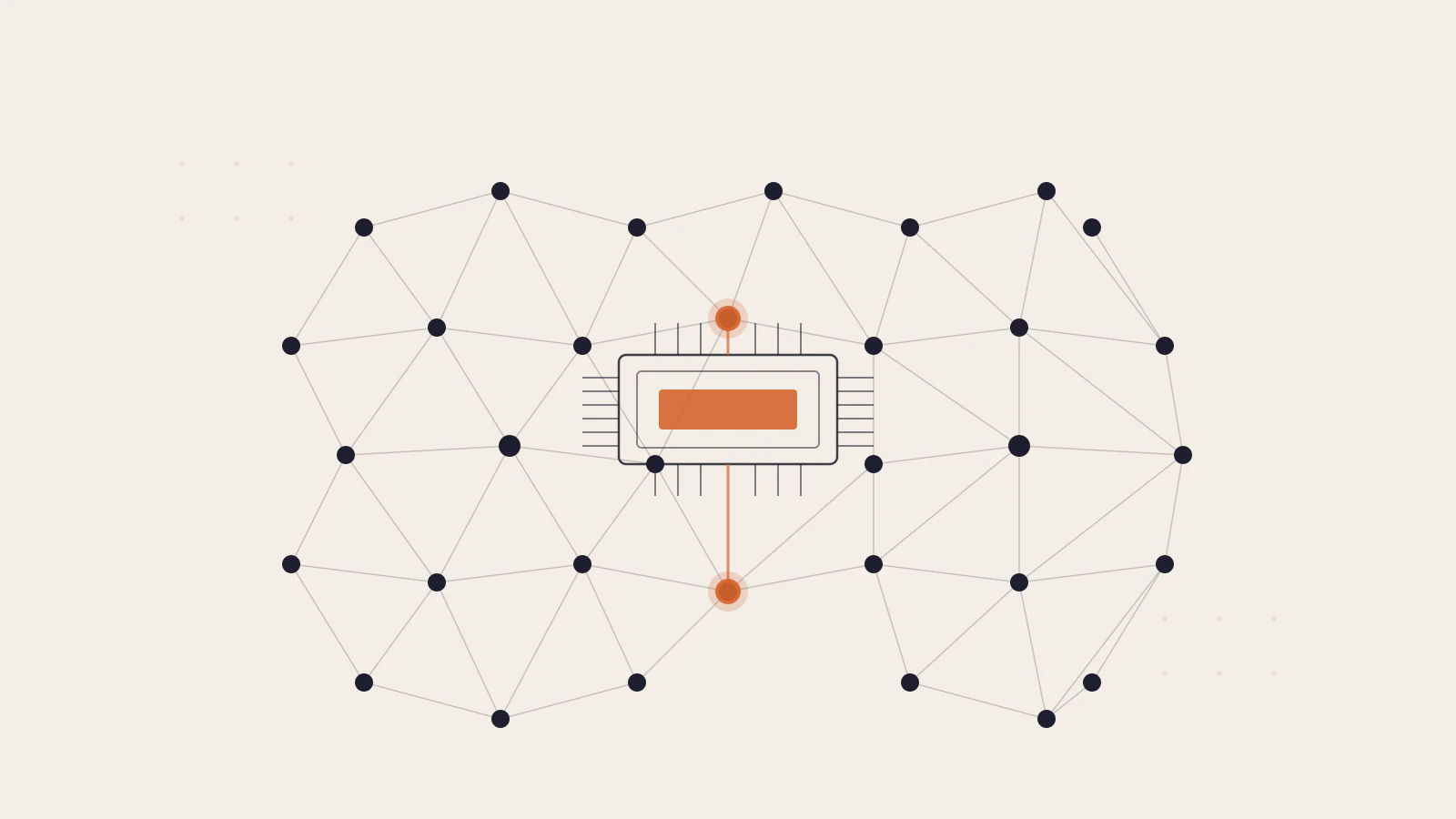
The model loads into RAM as a graph of quantized weights; the chip at the centre is your laptop’s CPU or GPU, not a remote server.