Navigation in React Native: A Practical Setup
I walk through React Navigation setup in React Native — Stack, Tab, and Drawer navigators, typed params, a deep links primer, and when Expo Router makes more sense.
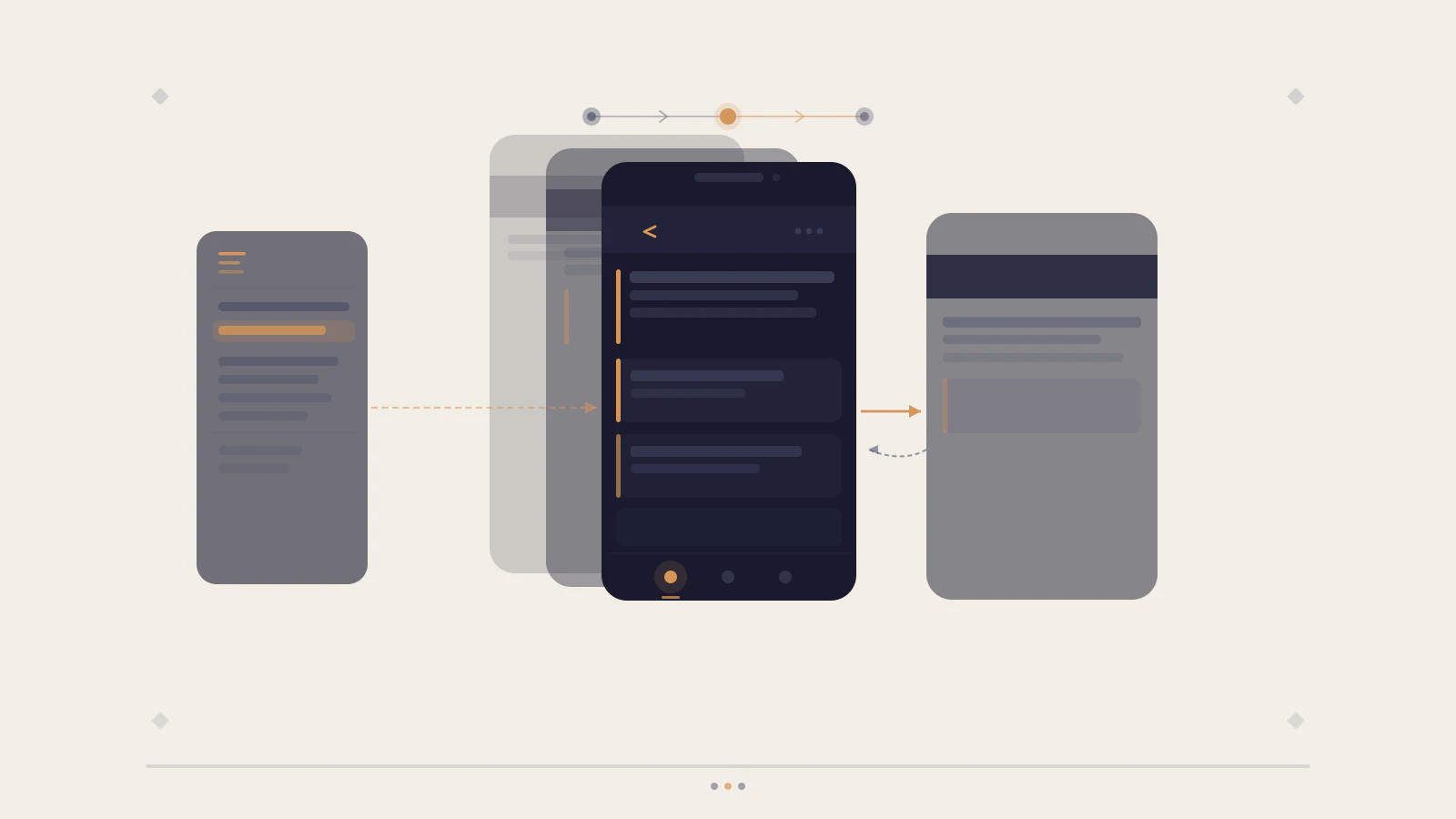
When you come from Next.js or React Router and open a fresh React Native project, the absence of routing feels wrong. There’s no router, no routes file, no concept of URL paths. Navigation is your problem to solve.
React Native doesn’t ship with a router because there’s no browser to delegate it to. You pick a library, install its platform dependencies, wire it to the root component, and define your screens. The standard choice is React Navigation. The newer alternative that handles most of this automatically is Expo Router.
Quick answer: Install
@react-navigation/nativeplus a navigator package (@react-navigation/native-stackor@react-navigation/bottom-tabs), wrap your app inNavigationContainer, and declare your screens. Usenavigation.navigate('ScreenName', params)to move forward andnavigation.goBack()to return. Expo Router is a file-based alternative that generates routes from your directory structure and adds deep links by default — a better fit for new Expo projects.
Series: Part 2 of 8 — React Native for React Developers.
On this page
- What React Navigation does for you
- Installing the dependencies correctly
- Stack Navigator: navigating between screens
- Bottom Tab Navigator: switching between sections
- Passing params between screens
- Where navigation setup breaks
- Expo Router: the file-based alternative
- Pick your navigator structure before writing screens
What React Navigation does for you
React Navigation isn’t just routing. It manages the screen history (so back gestures work correctly), renders native header bars, handles the hardware back button on Android, and exposes lifecycle events — focus, blur, beforeRemove — that let screens respond to navigation changes.
The architecture has two layers:
- NavigationContainer — the root component that holds all navigation state. One per app, at the very top of the component tree.
- Navigators — components that define how screens transition and what UI surrounds them. The three standard types are Stack, Tab, and Drawer.
A navigator contains screens. Screens can contain other navigators. That nesting — tabs that contain stacks, or a stack that wraps a tab navigator — is where most structural decisions in a React Native app get made.
Under the hood, React Navigation uses react-native-screens to integrate with native navigation primitives on iOS and Android. That’s why installation isn’t one command — there are platform-specific dependencies to configure before the library actually works.
Installing the dependencies correctly
For an Expo managed workflow project:
npx expo install @react-navigation/native react-native-screens react-native-safe-area-contextFor a bare React Native project:
npm install @react-navigation/native react-native-screens react-native-safe-area-context
npx pod-install ios  # macOS only
The bare install has two platform steps that are easy to overlook.
On Android, edit android/app/src/main/java/<your-package>/MainActivity.kt and add the fragment factory override:
import android.os.Bundle
import com.swmansion.rnscreens.fragment.restoration.RNScreensFragmentFactory

class MainActivity : ReactActivity() {
  override fun onCreate(savedInstanceState: Bundle?) {
    supportFragmentManager.fragmentFactory = RNScreensFragmentFactory()
    super.onCreate(savedInstanceState)
  }
}
Also add android:enableOnBackInvokedCallback="false" to the <application> tag in AndroidManifest.xml. React Navigation doesn’t yet support Android’s predictive back gesture — leaving this unset breaks back navigation on Android 13 and above.
On iOS, npx pod-install ios links the native modules. Skipping it means react-native-screens falls back to a JavaScript implementation, which causes subtle layout issues on modal presentations.
Then install the specific navigator packages you need:
npm install @react-navigation/native-stack   # screen history stack
npm install @react-navigation/bottom-tabs    # tab bar
Stack Navigator: navigating between screens
The Stack navigator maintains a history of screens. Navigate forward and a new screen slides in. Go back and the previous screen is revealed.
Use createNativeStackNavigator from @react-navigation/native-stack rather than createStackNavigator from @react-navigation/stack. The native version uses the platform’s own navigation primitives, which means smoother animations and less JavaScript overhead. The JavaScript stack is more customizable for custom transitions, but the native stack is the right default for most apps.
Declare a type that maps screen names to their params — this is what makes TypeScript genuinely useful here:
import { NavigationContainer } from '@react-navigation/native';
import { createNativeStackNavigator } from '@react-navigation/native-stack';

type RootStackParamList = {
  Home: undefined;
  Profile: { userId: string };
};

const Stack = createNativeStackNavigator<RootStackParamList>();

export default function App() {
  return (
    <NavigationContainer>
      <Stack.Navigator>
        <Stack.Screen name="Home" component={HomeScreen} />
        <Stack.Screen name="Profile" component={ProfileScreen} />
      </Stack.Navigator>
    </NavigationContainer>
  );
}
Home: undefined means the Home screen takes no params. Profile: { userId: string } means ProfileScreen always requires a userId string — TypeScript warns at compile time if you navigate there without one.
To navigate from HomeScreen, use useNavigation with the typed prop:
import { useNavigation } from '@react-navigation/native';
import { NativeStackNavigationProp } from '@react-navigation/native-stack';

type HomeNavProp = NativeStackNavigationProp<RootStackParamList, 'Home'>;

function HomeScreen() {
  const navigation = useNavigation<HomeNavProp>();

  return (
    <Pressable onPress={() => navigation.navigate('Profile', { userId: 'u-001' })}>
      <Text>Open Profile</Text>
    </Pressable>
  );
}
React Navigation renders a back button in the header automatically once there is a screen behind the current one. You can call navigation.goBack() programmatically if you need to trigger it from custom UI.
Bottom Tab Navigator: switching between sections
Tabs work differently from stacks. Rather than pushing screens onto a history, the Tab navigator switches between independent screen trees. Each tab maintains its own navigation state — navigate two screens deep inside the Explore tab, switch to Profile, then switch back, and Explore’s stack is exactly where you left it.
import { createBottomTabNavigator } from '@react-navigation/bottom-tabs';

const Tab = createBottomTabNavigator();

function MainTabs() {
  return (
    <Tab.Navigator>
      <Tab.Screen name="Feed" component={FeedScreen} />
      <Tab.Screen name="Explore" component={ExploreScreen} />
      <Tab.Screen name="Profile" component={ProfileScreen} />
    </Tab.Navigator>
  );
}
In most apps, tabs live at the root and each tab contains a stack of its own. Nesting Tab.Navigator inside NavigationContainer and passing stack components as the screen content is the standard pattern:
export default function App() {
  return (
    <NavigationContainer>
      <Tab.Navigator>
        <Tab.Screen
          name="Feed"
          component={FeedStack}
          options={{ headerShown: false }}
        />
        <Tab.Screen
          name="Profile"
          component={ProfileStack}
          options={{ headerShown: false }}
        />
      </Tab.Navigator>
    </NavigationContainer>
  );
}
When a screen inside FeedStack calls navigation.navigate('PostDetail'), the transition happens within the Feed tab’s own stack — the tab bar stays visible. If you need a screen to fully cover the tab bar (an onboarding flow, a full-screen viewer), put it in an outer Stack that wraps the Tab navigator. That inversion — Stack at the root, Tab navigator nested inside — is the right shape whenever some screens live above the persistent tab UI.
Passing params between screens
Params travel as the second argument to navigate:
navigation.navigate('Profile', { userId: 'u-001' });In the target screen, read them from route.params:
import type { NativeStackScreenProps } from '@react-navigation/native-stack';

type Props = NativeStackScreenProps<RootStackParamList, 'Profile'>;

function ProfileScreen({ route }: Props) {
  const { userId } = route.params;
  // fetch and display user by userId
}
NativeStackScreenProps<RootStackParamList, 'Profile'> types route.params to exactly the shape declared in your RootStackParamList — if TypeScript generics are new to you, TypeScript for JavaScript developers covers the foundation.
Pass identifiers, not full data objects. The right thing to put in params is a user ID, not the user record itself. The record comes from your data layer (a cache, a store, a hook); the param is just the key to find it with. Passing full objects leads to stale data bugs when the source of truth updates but the navigation params don’t reflect the change.
Check this before moving on
- Your
RootStackParamListcovers every screen in the Stack - Screens that take no params use
undefined, not an empty object{} - You are passing an identifier to
navigate, not a full data record
Where navigation setup breaks
Missing or misplaced NavigationContainer. It must wrap everything at the root of your app, always mounted. Put it inside a conditionally rendered component and the navigation context disappears whenever that component unmounts — any useNavigation call then throws. One NavigationContainer, at the top, never conditional.
useNavigation used outside the navigator context. A component that renders before NavigationContainer is mounted, or outside its subtree, can’t read the navigation context. The fix is moving the hook call into a screen component, or accepting navigation as a prop. If how React hooks pass context is still fuzzy, React hooks in practice walks through the mental model.
Android back gesture stops working after a React Native upgrade. The most common cause is the enableOnBackInvokedCallback attribute in AndroidManifest.xml. Setting it to false is required for React Navigation’s back gesture handling on Android 13 and above. This was a new requirement at some point in the React Native 0.73 era and is easy to miss when following upgrade guides.
The MainActivity.kt change is skipped. Apps built without the RNScreensFragmentFactory override can crash when the OS restores the app from the background, or when a screen is dismissed in certain presentation modes. It gets skipped when following quick-start guides written for earlier versions of react-native-screens that didn’t require it.
Expo Router: the file-based alternative
If you’re starting a new Expo project, Expo Router is worth looking at before committing to the React Navigation setup above.
Expo Router applies file-system routing — the same idea as Next.js — to React Native. Every file in the app/ directory becomes a route:
app/
  _layout.tsx        → root layout (wraps the whole app)
  index.tsx          → '/'
  profile/
    [userId].tsx     → '/profile/:userId'
Navigation uses a Link component and a useRouter hook rather than useNavigation. Deep links come for free — every route in the app/ directory has a corresponding URL that works on both platforms without any additional configuration. Dynamic segments like [userId] map directly to params:
// app/profile/[userId].tsx
import { useLocalSearchParams } from 'expo-router';

export default function ProfileScreen() {
  const { userId } = useLocalSearchParams<{ userId: string }>();
  return <Text>Profile: {userId}</Text>;
}
Expo Router is built on top of React Navigation internally. The same navigators are running under the hood — you configure them through _layout.tsx files and the directory structure instead of writing them by hand.
Choose Expo Router when you’re starting a new Expo project and want typed routes and automatic deep links without planning them separately. Stay with React Navigation when adding navigation to an existing codebase, needing fine-grained navigator customization, or working outside the Expo toolchain.
Pick your navigator structure before writing screens
The most expensive navigation mistake isn’t a wrong import or a missing dependency. It’s building out many screens before deciding whether tabs live inside a Stack or a Stack lives inside tabs. Those two shapes produce different UX, and reversing the decision later means refactoring every navigator definition and every screen that touches navigation state.
Answer this first: is there a persistent global UI element — a tab bar or a drawer — that most screens share? If yes, that navigator belongs at the root. Screens that need to cover it entirely go in a Stack that wraps the root navigator.
If the structure feels unclear, sketch it as a tree before opening a code editor. NavigationContainer at the top, then the root navigator type, then the screens, then any nested navigators those screens contain. The branches of that tree are where users move; the shape of the tree is the UX.
If React component composition is still coming together for you, reading through those patterns first will make the navigator nesting model click faster.