Authentication Flows in React Native
I cover token storage security in React Native, the access and refresh token pattern, navigation-based auth guards, biometric auth as a device gate, and OAuth with Expo's WebBrowser.
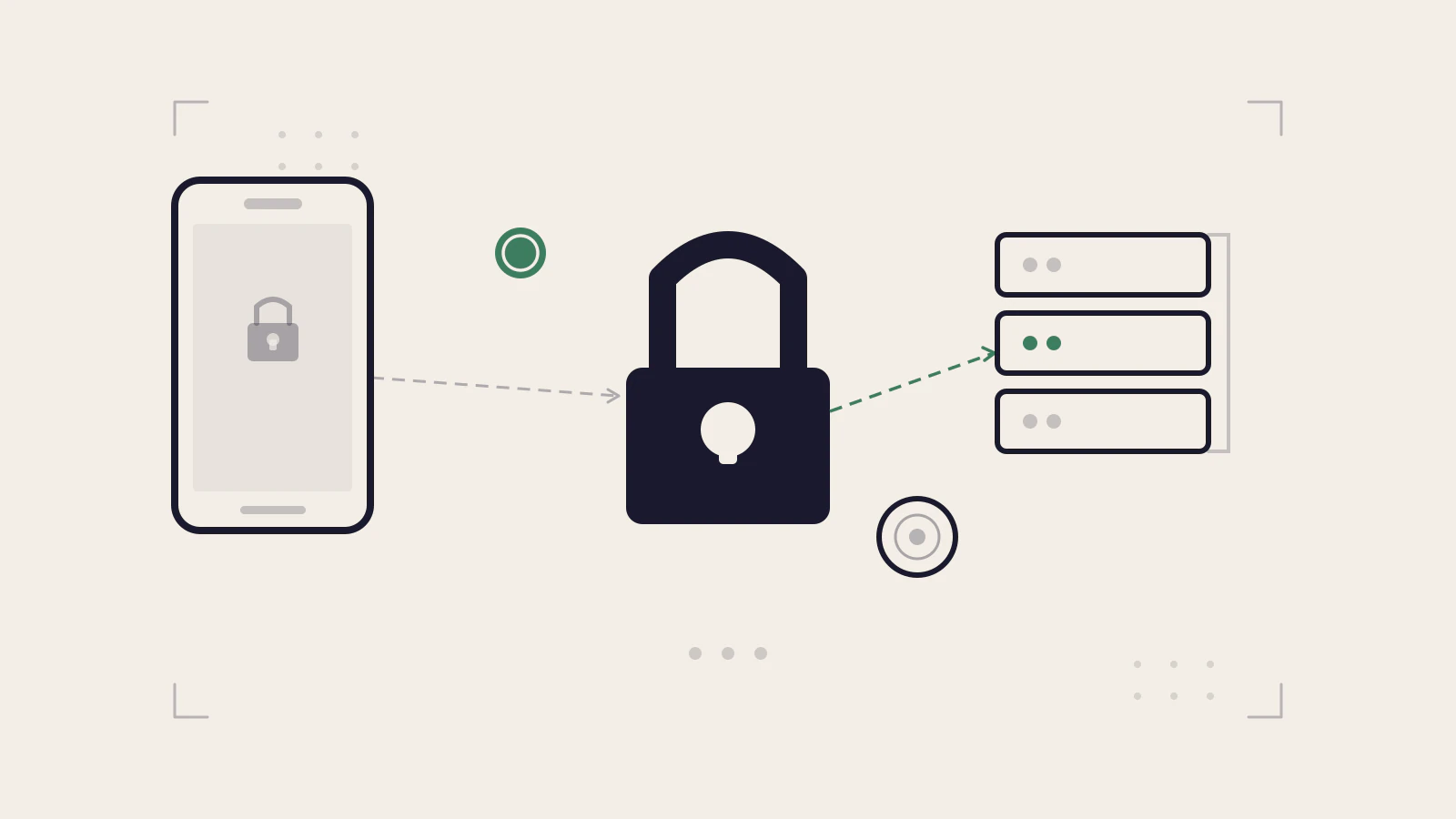
Building authentication in a React Native app trips most web developers up in two places. First, you look for localStorage and it isn’t there. Then you find something that works — AsyncStorage, easy to reach, familiar Promise-based API — and you store tokens in it. That works fine until you read the React Native security documentation and discover that AsyncStorage is completely unencrypted.
The gap between “auth works” and “auth is done correctly” on mobile is narrower than it looks. Most of it comes down to three decisions made early: where you store tokens, how you structure the token lifecycle, and how your navigation layer reflects the auth state. Get those right and the rest follows logically.
Quick answer: Store refresh tokens in
expo-secure-store(encrypted keychain on iOS, Android Keystore on Android), keep access tokens in memory only, wire your auth store to the navigator so protected screens are unreachable when unauthenticated, and useexpo-auth-sessionwith PKCE for OAuth flows. Never put credentials or tokens in AsyncStorage.
Series: Part 5 of 8. Start with Part 1: React Native for React Developers · Part 2: Navigation in React Native · Part 3: State Management in React Native Apps · Previous — Part 4: Building Forms and Validation in React Native
On this page
- Why AsyncStorage is the wrong place for tokens
- The access and refresh token pattern on mobile
- Wiring auth state to navigation
- Biometric authentication as a device gate
- OAuth with WebBrowser and AuthSession
- Where mobile auth commonly breaks
- The mental model that makes this easier
Why AsyncStorage is the wrong place for tokens
If you’ve read state management in React Native, you already know AsyncStorage is the standard tool for persisting non-sensitive data across app restarts. The key word is non-sensitive. The React Native security documentation is explicit about this: AsyncStorage should not be used for tokens, secrets, or credentials.
The reason is concrete: data in AsyncStorage sits unencrypted on the device filesystem. Anyone with access to the app sandbox — a jailbroken device, a USB debug extraction, or a backup tool — can read every value stored there. The same docs explicitly recommend platform-specific secure storage for sensitive values.
expo-secure-store is the right choice. It stores values in the iOS Keychain (kSecClassGenericPassword) on iOS and in SharedPreferences encrypted with the Android Keystore on Android. Both are backed by hardware security modules that keep the encryption key inaccessible from user space.
import * as SecureStore from 'expo-secure-store';

const REFRESH_TOKEN_KEY = 'app:refresh_token';

/** Persist a refresh token in encrypted storage. */
async function saveRefreshToken(token: string): Promise<void> {
  await SecureStore.setItemAsync(REFRESH_TOKEN_KEY, token);
}

/** Read the refresh token. Returns null if nothing is stored. */
async function loadRefreshToken(): Promise<string | null> {
  return SecureStore.getItemAsync(REFRESH_TOKEN_KEY);
}

/** Remove the token on sign-out. */
async function clearRefreshToken(): Promise<void> {
  await SecureStore.deleteItemAsync(REFRESH_TOKEN_KEY);
}
The Expo SecureStore documentation notes one practical constraint: iOS historically rejected values above roughly 2048 bytes in certain releases. Short token strings stay well inside that limit, but handle native errors if you’re storing anything larger.
Check this before moving on
- You’re using
expo-secure-storefor tokens and credentials, not AsyncStorage - AsyncStorage is only used for non-sensitive data (theme preference, display name cache, last-opened screen)
- Token keys follow a consistent prefix —
app:refresh_tokenrather than an unnamespacedrefreshToken
The access and refresh token pattern on mobile
Access tokens should be short-lived — 15 minutes is a common default. Refresh tokens live longer, often days or weeks. The separation limits risk: if an access token is somehow exposed, it expires quickly. The refresh token stays locked in secure storage and never goes over the network unless you’re exchanging it.
// Access token lives only in module memory — never persisted
let inMemoryAccessToken: string | null = null;

export function setAccessToken(token: string): void {
  inMemoryAccessToken = token;
}

export function getAccessToken(): string | null {
  return inMemoryAccessToken;
}

export function clearAccessToken(): void {
  inMemoryAccessToken = null;
}
Keeping the access token in a module variable rather than React state is intentional. React state triggers re-renders. You don’t want every API call in the app to cause a re-render because a token value updated in a context.
The flow on login:
- Your backend validates credentials and returns
{ accessToken, refreshToken }. - Save the refresh token with
SecureStore.setItemAsync. - Hold the access token in the module above.
- Attach it as
Authorization: Bearer <token>on outgoing requests. - When an API call returns
401, use the stored refresh token to fetch a new access token. - If the refresh fails or the token is expired, clear both and redirect to the login screen.
On app startup, check whether a refresh token exists in secure storage. If it does, exchange it silently for a new access token:
import * as SecureStore from 'expo-secure-store';
import { setAccessToken } from './auth-tokens';

/** Runs once on app initialisation. Returns true if a session was restored. */
export async function restoreSession(): Promise<boolean> {
  const refreshToken = await SecureStore.getItemAsync('app:refresh_token');
  if (!refreshToken) return false;

  try {
    const response = await fetch('https://your-api.com/auth/refresh', {
      method: 'POST',
      headers: { 'Content-Type': 'application/json' },
      body: JSON.stringify({ refreshToken }),
    });

    if (!response.ok) {
      await SecureStore.deleteItemAsync('app:refresh_token');
      return false;
    }

    const { accessToken } = await response.json();
    setAccessToken(accessToken);
    return true;
  } catch {
    return false;
  }
}
This gives you session persistence without trusting anything to AsyncStorage. The access token never survives an app restart — you get a fresh one silently if the refresh token is valid, or the user logs in again if it isn’t.
For the backend half of this pattern, JWT authentication in Node.js covers the token structure, the signing process, and the verify middleware that actually validates what your app sends.
Wiring auth state to navigation
Navigation guards in React Native aren’t middleware functions like they are in Express or a web router. The pattern is simpler: maintain auth state in a store, and let the navigator render a different screen tree depending on whether the user is authenticated.
import { create } from 'zustand';

interface AuthStore {
  isAuthenticated: boolean;
  isRestoring: boolean;
  signIn: () => void;
  signOut: () => void;
  setRestoring: (value: boolean) => void;
}

export const useAuthStore = create<AuthStore>((set) => ({
  isAuthenticated: false,
  isRestoring: true,
  signIn: () => set({ isAuthenticated: true }),
  signOut: () => set({ isAuthenticated: false }),
  setRestoring: (value) => set({ isRestoring: value }),
}));
The root navigator reads that store and chooses which screen tree to mount:
import { NavigationContainer } from '@react-navigation/native';
import { createNativeStackNavigator } from '@react-navigation/native-stack';
import { useAuthStore } from './auth-store';

const Stack = createNativeStackNavigator();

export default function RootNavigator() {
  const { isAuthenticated, isRestoring } = useAuthStore();

  if (isRestoring) {
    return <SplashScreen />;
  }

  return (
    <NavigationContainer>
      <Stack.Navigator screenOptions={{ headerShown: false }}>
        {isAuthenticated ? (
          <Stack.Screen name="App" component={AppStack} />
        ) : (
          <Stack.Screen name="Auth" component={AuthStack} />
        )}
      </Stack.Navigator>
    </NavigationContainer>
  );
}
When isAuthenticated flips, React re-renders and the navigator swaps the entire screen tree. There’s no way for an unauthenticated user to reach an authenticated screen — those screens simply don’t exist in the navigator tree they’re in. The isRestoring flag gives you the window to run restoreSession() on startup before deciding which stack to show.
This guard pattern is covered from the navigation perspective in Navigation in React Native. Auth is just the most common use case for conditional stack rendering.
Biometric authentication as a device gate
Biometric auth — fingerprint, Face ID, Android face unlock — is not a replacement for tokens. It’s a gate that sits in front of them.
The pattern: tokens live in secure storage. When the user opens the app or performs a sensitive action, you prompt for biometric verification before reading the token out of storage. The biometric check never touches your server. It confirms locally that the person holding the device is an enrolled user before handing over the credential.
import * as LocalAuthentication from 'expo-local-authentication';

/**
 * Prompt for biometric verification.
 * Returns true on success, false if unavailable or failed.
 */
export async function verifyWithBiometrics(): Promise<boolean> {
  const hasHardware = await LocalAuthentication.hasHardwareAsync();
  const isEnrolled = await LocalAuthentication.isEnrolledAsync();

  if (!hasHardware || !isEnrolled) {
    // No biometrics available — fall through to PIN or credentials.
    return false;
  }

  const result = await LocalAuthentication.authenticateAsync({
    promptMessage: 'Verify your identity to continue',
    fallbackLabel: 'Use passcode',
  });

  return result.success;
}
The Expo LocalAuthentication documentation notes that Face ID on iOS requires NSFaceIDUsageDescription in Info.plist, configured via the expo-local-authentication config plugin. Without it, the module silently falls back to the device passcode.
One important caveat from the Expo SecureStore docs: if you store a value with requireAuthentication: true, that value becomes inaccessible whenever the user changes their biometric settings — a new fingerprint, a re-enrolled face. Design for this. Either surface an error with a path to re-authenticate using credentials, or avoid requireAuthentication and gate access at the app level instead.
OAuth with WebBrowser and AuthSession
When you’re integrating a third-party identity provider, the browser-based OAuth flow is the right approach. expo-auth-session handles the plumbing: it opens the provider’s authorization page in a system browser, captures the redirect, and hands you the result.
import * as AuthSession from 'expo-auth-session';

const redirectUri = AuthSession.makeRedirectUri({
  scheme: 'myapp',
  path: 'oauth/callback',
});

const discovery = {
  authorizationEndpoint: 'https://your-provider.com/oauth/authorize',
  tokenEndpoint: 'https://your-provider.com/oauth/token',
};
function OAuthSignInButton() {
const [request, response, promptAsync] = AuthSession.useAuthRequest(
{
clientId: 'your-client-id',
redirectUri,
scopes: ['openid', 'profile', 'email'],
// PKCE is on by default (usePKCE: true)
},
discovery
);
React.useEffect(() => {
if (response?.type === 'success') {
const { code } = response.params;
// Send the code to your own backend to exchange — never in the app
exchangeCodeOnYourBackend(code, redirectUri);
}
}, [response]);
return (
<Pressable onPress={() => promptAsync()} disabled={!request}>
<Text>Sign in</Text>
</Pressable>
);
}PKCE (Proof Key for Code Exchange) is enabled by default in useAuthRequest — no extra configuration needed. What the app should not do is exchange the authorization code directly for tokens using a client secret. The Expo AuthSession documentation is clear: there’s no secure way to store a secret in a mobile app. The code exchange belongs on a server endpoint you control, which then issues your own session tokens.
Where mobile auth commonly breaks
Storing refresh tokens in AsyncStorage. This is the most common mistake and it’s invisible — the app functions correctly, logs show no errors, users never notice. The problem is only visible if someone extracts the app sandbox from a compromised device. The fix is one import swap: expo-secure-store instead of @react-native-async-storage/async-storage.
Putting auth guards inside screen components. When you check tokens in a useEffect and call navigation.navigate('Login') inside the screen that needs protecting, you’ve created a window where that screen mounts and runs its own code before the redirect fires. The navigator-level approach above means the protected screen never mounts at all.
Skipping session restoration on app launch. If you don’t run restoreSession() before deciding which stack to show, users with valid refresh tokens are forced to sign in again on every cold start. Access tokens are intentionally short-lived; the restoration step is what makes the session feel persistent.
Treating biometric success as server-verified identity. A successful biometric prompt confirms device possession by an enrolled user. It doesn’t prove anything to your server. Always back protected API calls with a real token — biometric verification just controls whether the app reads that token out of storage.
The mental model that makes this easier
Mobile authentication has two distinct layers. The first is identity verification — the backend confirms who the user is and issues tokens. This layer is identical to any web app you’ve built. The second is token custody — the app stores those tokens securely and presents them correctly across the session lifetime.
Most auth problems on mobile come from treating these two layers as one, or from borrowing web browser patterns (like localStorage) that have no encrypted equivalent on mobile.
The custody layer is what’s mobile-specific: SecureStore for long-lived credentials, module memory for short-lived access tokens, conditional navigator stacks as the enforcement mechanism, and biometrics as a local convenience gate. None of it replaces the identity layer — it just takes better care of what that layer produces.
Authentication vs authorization covers the concepts that sit underneath both layers — what tokens actually represent, why the distinction between identifying a user and granting them access matters, and where the boundary between the two usually breaks down.