Git Basics Every Developer Should Master
I explain the four places your code lives in Git — working tree, staging area, repository, remote — and the daily commands that finally make sense once you see the map.

Most of us learn Git as spells. git add . worked once, so it becomes the ritual — until the day it sweeps a .env file into a commit headed for the shared repository. Then the search-result patching starts: git reset HEAD~1, copy, paste, hold your breath. The commands feel arbitrary because nobody shows you the map they operate on.
Here’s what I wish someone had told me early: Git is four places, and every command moves work between them. Learn the map and the commands stop being incantations — they become sentences. This is the Git leg of the tour the TypeScript series pointed at, and it starts with the only diagram that matters.
On this page
- The four places your code can live
- The daily loop: status, add, commit, diff, log
- Branches are pointers, not copies
- Stash: shelving work without a commit
- Undo without fear: restore, reset, and revert
- What .gitignore actually ignores
- Follow the file, not the commands
The four places your code can live
Pro Git describes three states a file can be in — modified, staged, and committed — living in three places: the working tree (your actual files on disk), the staging area (the holding list for the next commit; its technical name is “the index”), and the Git directory (the database inside .git). Add the remote — a copy of that database on a server — and you get the four places every command shuttles work between:
- Working tree — the files you edit.
- Staging area — what you’ve marked for the next commit.
- Local repository — committed snapshots in
.git. - Remote — the shared copy you push to and pull from.
The second half of the model: a commit is a snapshot, not a diff. When you commit, Git takes a picture of every file as it stands and stores a reference to that picture; files that haven’t changed since the last snapshot are kept as links to copies Git already has. This is why browsing history feels instant and why almost everything works offline — the whole history already sits on your disk.
Why does the staging area exist at all? Because it lets you compose a commit instead of accepting whatever is on disk. Fixed a bug and also reformatted three unrelated files? Stage the bug fix, leave the reformatting behind. The staging area is the difference between “commit everything I touched” and “commit exactly what I mean.”
The daily loop: status, add, commit, diff, log
git status is the map reader. Its output has two sections that matter — “Changes to be committed” (staged) and “Changes not staged for commit” (modified but not staged) — and knowing which file sits in which section is most of day-to-day Git.
Here’s the detail that surprises people: a file can appear in both sections at once. Staging records the file exactly as it is when you run git add, not the file in general. Stage a file, keep editing it, and git status lists it twice — the frozen version waiting for the commit, and the newer changes waiting for another git add. The book’s framing helped me: read the command as “add precisely this content to the next commit,” not “add this file.”
The loop, then:
git status              # what's where?
git add src/app.ts      # freeze this content for the next commit
git diff                # unstaged changes: working tree vs staging area
git diff --staged       # what exactly will the next commit contain?
git commit -m "Fix empty-state rendering"
git log --oneline --graph --all
Note the two diffs. Plain git diff compares your working tree against the staging area; git diff --staged compares the staging area against the last commit. If everything is staged, plain git diff prints nothing — a moment of confusion everyone gets to enjoy exactly once.
One shortcut worth knowing: git commit -a -m "..." stages every tracked file automatically. It’s convenient, and it’s exactly how stray debugging changes sneak into commits. I’d rather stage deliberately and save the shortcut for throwaway branches.
Try this
- Open any file in a Git project, change a line, and run
git add <file>.- Change another line in the same file. Do not stage it again.
- Run
git status, thengit diff --staged, thengit diff.Expected result: the file appears under both status sections, and the two diffs show different changes — the frozen version versus your newest edits.
Branches are pointers, not copies
Now the payoff of the snapshot model. In many older version control systems, branching means copying the whole project. In Git, a branch is a lightweight movable pointer to one commit — the book notes it amounts to a 41-byte file holding a commit’s checksum. Creating a branch copies nothing; it writes one tiny file. That cheapness is the point: because parents are recorded in every commit, Pro Git says Git encourages workflows that branch and merge multiple times in a day.
A special pointer called HEAD marks the branch you’re currently on. Switching branches moves HEAD and rewrites your working tree to match the snapshot that branch points at:
git switch -c login-form     # create the branch and switch to it
git switch main              # back to main
git switch - # back to wherever you just were(git switch and git restore arrived in Git 2.23 to split the overloaded git checkout into two clearer commands. The older ones still work everywhere, including most documentation you’ll read.)
Merging is the same idea pointing the other way: git merge login-form while on main creates a commit with two parents — one per line of history — so both histories stay intact and reachable.
main        A --- B -------------------- M
                  \                    /
login-form        C --- D ------------/
M has two parents: B, where main was, and D, where the branch ended. Nothing was copied or rewritten; a new snapshot simply ties the two lines together.
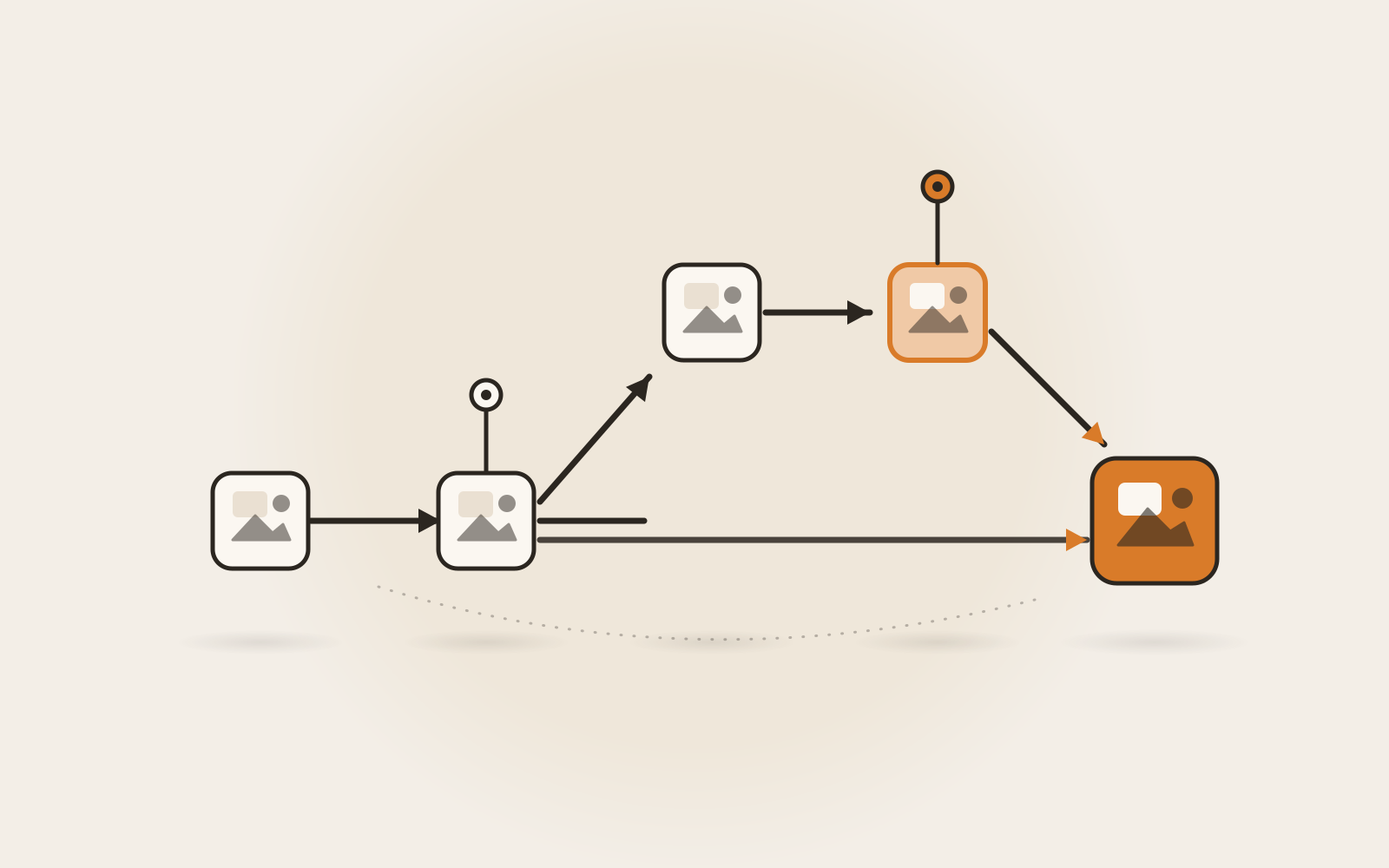
The same structure without the letters: two pointer pins travel one chain of snapshots, split onto their own paths, and rejoin at a merge block that keeps both paths reachable.
Stash: shelving work without a commit
Half-finished work and “fix this right now” collide constantly, and a panic commit pollutes history with a snapshot you don’t mean. git stash exists for the gap: it records the current state of your working directory and index, then returns you to a clean tree — uncommitted work, parked out of the way but not thrown away.
git stash push -m "half-done refactor"   # shelve it
git stash list                           # what's shelved?
git stash pop                            # bring it back
pop reapplies the newest stash and removes it from the list. apply reapplies and keeps a copy — I’d reach for that one whenever the reapply might conflict, because if it does, the stash is still there while you untangle the mess.
Undo without fear: restore, reset, and revert
Undo is where Git’s scary reputation lives, but with the map in hand it reduces to three questions: what am I undoing, where is it, and has anyone else seen it?
Unstaged edits you don’t want. git restore <file> discards working-tree changes and replaces the file with the last staged or committed version. The book is blunt that this destroys local changes for good — there is no undo for this undo.
Staged by mistake. git restore --staged <file> unstages without touching the file on disk. Nothing is lost; the change just moves back a place.
Last commit is wrong. git commit --amend doesn’t fix the last commit — it replaces it with a new one built from your current staging area. Great for a forgotten file or a typo’d message. The book’s rule: only amend commits you haven’t pushed, because rewriting history others already have breaks their copies.
Erase commits from local history. git reset HEAD~2 moves the branch pointer back two commits while keeping your files as they are (add --hard and the working tree is rewritten too — that flag throws away uncommitted changes).
Undo a commit others already have. git revert <commit> takes the safe path: instead of rewriting history, it records new commits that reverse the effect of the old ones. History only grows; teammates simply pull the fix.
| Your situation | Reach for | Why |
|---|---|---|
| Unstaged edits you don’t want | git restore <file> |
Working tree only; the changes are gone for good |
| Staged too much | git restore --staged <file> |
Unstages; the file on disk is untouched |
| Bad last commit, not pushed | git commit --amend |
Replaces the commit with a corrected one |
| Shared commit broke something | git revert <commit> |
Adds an undoing commit; no history rewrite |
And the safety net most people never hear about: because Git mostly only adds data, anything you’ve committed can almost always be recovered — even commits you amended away or lost on a deleted branch. Git quietly keeps a journal of where its pointers have pointed (the reflog), and Pro Git’s data-recovery walkthrough digs commits back out of it. The genuinely fragile thing in Git is uncommitted work. That asymmetry should shape your habits: commit small, commit often, tidy up afterwards.
What .gitignore actually ignores
A .gitignore file is not a list of “files Git shouldn’t track.” Its real job is to keep untracked files from becoming tracked — and, in the docs’ own words, “files already tracked by Git are not affected.” If you committed config/local.json three weeks ago and add it to .gitignore today, Git will keep tracking it forever.
# patterns for what Git shouldn't pick up
node_modules/
dist/
*.log
.env
To actually stop tracking a file that’s already in a commit, the docs give the two-step: take it out of the index, then ignore it.
git rm --cached config/local.jsonOne more rule worth knowing because it bites everyone once: patterns can be negated with !, but Git won’t re-include a file whose parent directory is excluded. logs/ followed by !logs/keep.txt does nothing — the directory was excluded wholesale, so Git never looks inside it. Exclude the contents instead: logs/*, then negate the file you want kept.
Follow the file, not the commands
The model to keep is small: four places, work moving left to right, commands as moves. Every confusing Git situation becomes answerable by asking where the file currently is and which direction you need it to go. git status names the places; the command follows. It’s the same bet as the rest of this blog’s fundamentals — knowing how the web works beats memorizing HTTP rituals, and the map outlives any command you memorize today.
So next time Git confuses you, don’t reach for a longer command. Run git status, point at each file, and say which of the four places it’s sitting in. Most of the time, the right command writes itself from there. The one thing the map can’t save you from is work you never committed — so when in doubt, commit. A branch costs 41 bytes, and a snapshot you meant is always better than a change you lost.
One thread still open: this post covered the machine itself. A follow-up on branching workflows — how teams slice daily work into branches, name them, and merge them without stepping on each other — is where this model meets real collaboration.
Sources
- Pro Git, chapter 1.3: What is Git? — snapshots and the three states
- Pro Git, chapter 2.2: Recording Changes to the Repository
- Pro Git, chapter 2.4: Undoing Things
- Pro Git, chapter 3.1: Branches in a Nutshell
- git-revert reference documentation — git-scm.com
- git-stash reference documentation — git-scm.com
- gitignore reference documentation — git-scm.com