How to Build Your First AI-Powered App with React, Node.js, and OpenAI
I walk through building a streaming chat app end to end — Express proxies the OpenAI API key server-side, pipes SSE chunks back, and a React UI reads and renders each token as it arrives.
Most AI tutorials show you openai.chat.completions.create() in a standalone script and call that a demo. Run it, get a response, call it done. What they don’t show is how to wire that into a real app: the API key needs to stay on the server, users expect tokens to stream in as they’re generated rather than waiting two seconds for a full response, and something useful needs to happen when the stream breaks mid-sentence.
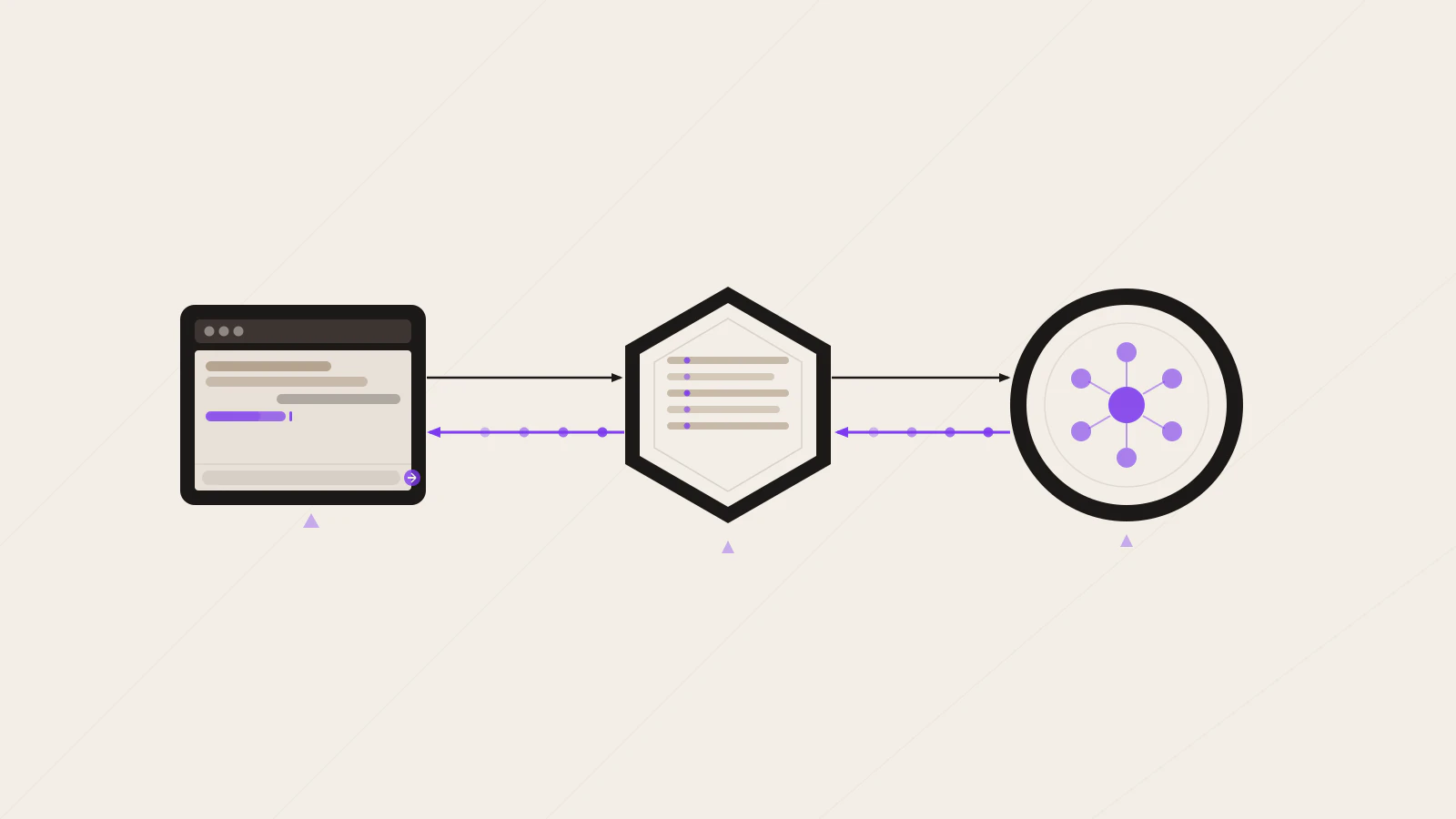
The architecture isn’t complicated once you see all three pieces together. An Express endpoint calls the OpenAI API and pipes chunks back as server-sent events. A system prompt shapes the assistant’s personality. A React component reads the stream and appends each token to the UI as it arrives.
Quick answer: Install
openai,express,cors, anddotenvon the server. Callopenai.chat.completions.create({ stream: true }), iterate withfor await (const chunk of stream), and write eachchunk.choices[0]?.delta?.contentas an SSE event. On the React side, read the stream withresponse.body.getReader()and append tokens to state inside the read loop.
On this page
- What you’ll end up with
- The Express backend: keeping the API key on the server
- System prompts: shaping the assistant
- Streaming the response chunk by chunk
- Building the React UI that reads the stream
- Common failures and how to handle them
- The plumbing is the product
What you’ll end up with
Before diving in, make sure you have:
- Node.js 18 or higher
- An OpenAI API key from the OpenAI platform
- A React project with TypeScript (Vite works well here)
- Basic familiarity with Express — the REST API with Node.js and Express guide covers the essentials if you need a refresher
The app has two separate processes: a server/ directory running Express, and your React frontend in src/. No monorepo needed — just two folders, two terminal tabs.
Install the server dependencies:
cd server
npm init -y
npm install openai express cors dotenv
npm install -D typescript @types/express @types/node ts-node
Add OPENAI_API_KEY=your-key-here to server/.env. Never commit this file. The key stays on the server — the browser never sees it.
The Express backend: keeping the API key on the server
If you call the OpenAI API directly from the browser, your API key sits in the client’s JavaScript bundle. Anyone who opens DevTools can read it and use it. The server exists to prevent that: your frontend sends a message to your server, your server calls OpenAI with the key it holds, and the response comes back through your server.
Start with the Express setup:
// server/index.ts
import express from 'express';
import cors from 'cors';
import OpenAI from 'openai';
import 'dotenv/config';

const app = express();
app.use(cors({ origin: 'http://localhost:5173' })); // Vite's default port
app.use(express.json());

const openai = new OpenAI(); // reads OPENAI_API_KEY from process.env automatically

app.listen(3001, () => console.log('Server running on port 3001'));
new OpenAI() reads process.env.OPENAI_API_KEY automatically — you don’t pass it explicitly. If the variable is missing or empty, the constructor throws immediately when the server starts rather than failing silently on the first request. That’s a useful early-warning behavior.
Try this
- Create
server/.envwithOPENAI_API_KEY=sk-...(your real key).- Run
node --env-file=.env index.ts(Node 20+) orts-node -r dotenv/config index.ts.- Confirm the startup message appears in the terminal.
Expected result:
Server running on port 3001. If you see an authentication error, the key was read but rejected — double-check it in the OpenAI dashboard.
System prompts: shaping the assistant
The system prompt is a message at the front of the messages array with role: "system". It runs before any user input and tells the model what role it’s playing and how to respond. Most first apps skip it and get generic, unfocused behavior. That’s not a limitation of the model — it’s a missing instruction.
Compare the difference in practice:
// Unfocused — produces general ChatGPT-style behavior
{ role: 'system', content: 'You are a helpful assistant.' }

// Focused — changes scope, tone, and response length
{
  role: 'system',
  content: `You are a senior software engineer answering code questions.
Answer only technical questions about code, architecture, or debugging.
Keep responses under 150 words. Use plain English, not jargon.
When you show code, keep examples to 20 lines or fewer.`
}
The second version changes the character of the assistant completely. It won’t go off-topic, it won’t give verbose explanations, and it won’t pretend to help with things outside its scope.
The system prompt is where most of the product thinking lives. A customer support bot, a code reviewer, and a creative writing assistant can all use the same streaming code below — the only difference is what you put in the system message.
Streaming the response chunk by chunk
Without streaming, openai.chat.completions.create() waits until the full response is generated before returning. For a long answer that’s two to five seconds — long enough to feel broken. With stream: true, the model sends tokens as it generates them, and the UI updates character by character just like ChatGPT.
Here’s the route that handles the full stream:
// server/index.ts — add this route

const SYSTEM_PROMPT = `You are a concise technical assistant for developers.
Answer questions clearly in plain English.
Use code examples only when they directly answer the question.`;

app.post('/api/chat', async (req, res) => {
  const { messages } = req.body as {
    messages: Array<{ role: string; content: string }>;
  };

  res.setHeader('Content-Type', 'text/event-stream');
  res.setHeader('Cache-Control', 'no-cache');
  res.setHeader('Connection', 'keep-alive');

  try {
    const stream = await openai.chat.completions.create({
      model: 'gpt-4o-mini',
      messages: [
        { role: 'system', content: SYSTEM_PROMPT },
        ...messages,
      ],
      stream: true,
    });

    for await (const chunk of stream) {
      const text = chunk.choices[0]?.delta?.content ?? '';
      if (text) {
        res.write(`data: ${JSON.stringify({ text })}\n\n`);
      }
    }

    res.write('data: [DONE]\n\n');
    res.end();
  } catch (err) {
    if (!res.headersSent) {
      res.status(500).json({ error: 'Stream failed to start' });
    } else {
      res.write(`data: ${JSON.stringify({ error: 'Stream interrupted' })}\n\n`);
      res.end();
    }
  }
});
Two things worth noting about the streaming loop:
chunk.choices[0]?.delta?.content — in a streaming response, the content arrives on delta, not message. The first chunk usually carries a role: "assistant" with null content. The ?? '' guard handles null values, and the if (text) check skips writing empty events to the client.
SSE format — each event is data: <payload>\n\n. The double newline marks the boundary between events. The [DONE] signal tells the client the stream is finished — this is the same convention the OpenAI raw API uses for its own SSE stream.
Check this before moving on
-
res.setHeader('Content-Type', 'text/event-stream')appears before anyres.write()call - The
for awaitloop iterates overstreamdirectly (notstream.choices) - Error handling covers both cases: before headers are sent and mid-stream
Building the React UI that reads the stream
The frontend doesn’t use the EventSource API here. EventSource only supports GET requests and you can’t send a request body with it — but you need to send the conversation history. Instead, you make a POST request and read the raw stream with response.body.getReader().
Set up the types and state:
// src/Chat.tsx
import { useState } from 'react';

type Message = { role: 'user' | 'assistant'; content: string };

export default function Chat() {
  const [messages, setMessages] = useState<Message[]>([]);
  const [input, setInput] = useState('');
  const [streaming, setStreaming] = useState(false);
Then the send handler:
  async function sendMessage() {
    if (!input.trim() || streaming) return;

    const userMsg: Message = { role: 'user', content: input };
    const history = [...messages, userMsg];

    setMessages([...history, { role: 'assistant', content: '' }]);
    setInput('');
    setStreaming(true);

    const res = await fetch('http://localhost:3001/api/chat', {
      method: 'POST',
      headers: { 'Content-Type': 'application/json' },
      body: JSON.stringify({ messages: history }),
    });

    const reader = res.body!.getReader();
    const decoder = new TextDecoder();

    while (true) {
      const { done, value } = await reader.read();
      if (done) break;

      const lines = decoder.decode(value).split('\n');
      for (const line of lines) {
        if (!line.startsWith('data: ')) continue;
        const raw = line.slice(6);
        if (raw === '[DONE]') { setStreaming(false); return; }

        try {
          const { text } = JSON.parse(raw) as { text: string };
          setMessages(prev => {
            const copy = [...prev];
            copy[copy.length - 1] = {
              ...copy[copy.length - 1],
              content: copy[copy.length - 1].content + text,
            };
            return copy;
          });
        } catch { /* partial chunk — skip */ }
      }
    }

    setStreaming(false);
  }
Three things that catch people here:
Add the empty placeholder before the fetch. Setting { role: 'assistant', content: '' } in state before the request goes out means the UI shows a typing bubble immediately. Without it, there’s a visible gap between sending the message and seeing the first token — which makes the app feel slower than it actually is.
Use the functional update form. setMessages(prev => ...) instead of capturing messages in the closure. The stream loop runs asynchronously over multiple microtasks. By the time a token arrives, the outer messages value is stale. The prev argument from the updater function always reflects the current state.
Send history, not messages. At the point you call setMessages, the state now includes the empty assistant placeholder. You don’t want to send that to the API. Build history from the previous conversation plus the new user message before you update state, and pass that to the fetch.
For the JSX rendering and TypeScript patterns, the React fundamentals guide and TypeScript for JavaScript developers cover what you’ll need.
Common failures and how to handle them
The stream opens but nothing shows in the UI. Open the Network tab in DevTools. Find the /api/chat request and check the response headers. Content-Type: text/event-stream should be on the response, not just the request. If you see application/json on the response, the server threw an error before setting the stream header — the error JSON is in the response body.
CORS error in the browser console. The cors() call needs to allow the origin of your React dev server. Vite defaults to http://localhost:5173. Passing cors() with no options allows all origins, which works for local development — scope it to specific origins before deploying.
Rate limit errors (429). The gpt-4o-mini free tier has rate limits. In development you rarely hit them, but if you do, the error appears in the caught exception. The message from the API is descriptive enough to act on: “You exceeded your current quota” means rate-limited, not a bad key.
Context window keeps growing. The code sends the full conversation history with every request. That works for short sessions but approaches the model’s context limit (128,000 tokens for gpt-4o-mini) in long ones. For production use, truncate old messages or summarize the history when it grows past a threshold. For a development app or prototype, this isn’t a concern until you start noticing degraded response quality.
The plumbing is the product
Once the stream flows, the AI behavior comes from two inputs: the system prompt and the message history. The routing and streaming code stays identical whether you’re building a code reviewer, a customer support bot, or a writing assistant. What changes is what’s in the system message.
That’s actually the most useful thing to understand early. The openai package is making an HTTP request. The streaming is a for await loop writing to a response. Neither is complicated once you see it. The interesting work is deciding what the assistant should be — what it answers, how it answers, what it refuses.
If you want to move this into a full Next.js app, the Next.js App Router guide covers the project structure. The streaming patterns here translate directly to Next.js Route Handlers — the for await loop and SSE format work the same way.