Docker Compose for Local Development
I walk through building a local app-and-database stack with Docker Compose, covering the compose.yaml structure, healthchecks, volume mounts for hot-reload, and named volumes for persistence.
You clone a repository, open the README, and find a list of things you need to have running before the app works: a database on port 5432, a cache on port 6379, maybe a queue consumer. You spend half the morning figuring out which version of each to install. Then a colleague joins the team and starts from scratch.
That’s the problem Docker Compose solves. One file defines the entire stack. One command starts it.
Quick answer: Create a
compose.yamlfile that lists your services, their images or build contexts, environment variables, ports, and volumes. Rundocker compose upfrom the project root. All services start together, share a network, and can reach each other by service name.
On this page
- What compose.yaml is made of
- Building a working app and database stack
- Why depends_on alone isn’t enough
- Volume mounts: hot-reload vs. data persistence
- Keeping secrets out of the compose file
- Common reasons the stack won’t start
- Treat the compose file as your local infrastructure definition
What compose.yaml is made of
A Compose file has four main top-level sections. You don’t need all of them in every project, but knowing what each does helps you read any Compose file you encounter.
services is where you define each container: what image it uses, what ports to expose, what environment variables to set, which other services it depends on, and how its filesystem is mounted. This is the section you’ll edit most.
networks controls how containers communicate. Compose creates a default bridge network automatically and attaches all services to it, so you usually don’t need to touch this. Services on the same network can reach each other using the service name as a hostname — if your app service is named web and your database is named db, the app can connect to postgres://db:5432 without any extra configuration.
volumes declares named volumes that live outside any individual container. Database files stored in a named volume survive docker compose down and are still there the next time you start the stack.
env_file isn’t a top-level key — it lives inside a service definition — but it’s worth mentioning early because it’s the right way to pass credentials and configuration without hardcoding them in the Compose file.
Building a working app and database stack
Here’s a Compose file that runs a Node.js web application alongside a PostgreSQL database. I’ll walk through each part.
services:
  web:
    build: .
    ports:
      - "3000:3000"
    volumes:
      - .:/app
      - /app/node_modules
    env_file:
      - .env
    depends_on:
      db:
        condition: service_healthy
        restart: true

  db:
    image: postgres:17-alpine
    ports:
      - "5432:5432"
    volumes:
      - postgres_data:/var/lib/postgresql/data
    env_file:
      - .env
    healthcheck:
      test: ["CMD-SHELL", "pg_isready -U $${POSTGRES_USER} -d $${POSTGRES_DB}"]
      interval: 10s
      timeout: 5s
      retries: 5
      start_period: 30s

volumes:
  postgres_data:
The web service builds from a local Dockerfile. The db service uses the official PostgreSQL image directly.
The ports entry on web maps port 3000 in the container to port 3000 on your machine. The database port mapping on db is optional for production but useful during development so you can connect a local database client directly.
The web service connects to the database at postgres://db:5432/mydb — the hostname db is the service name, resolved by Compose’s internal DNS.
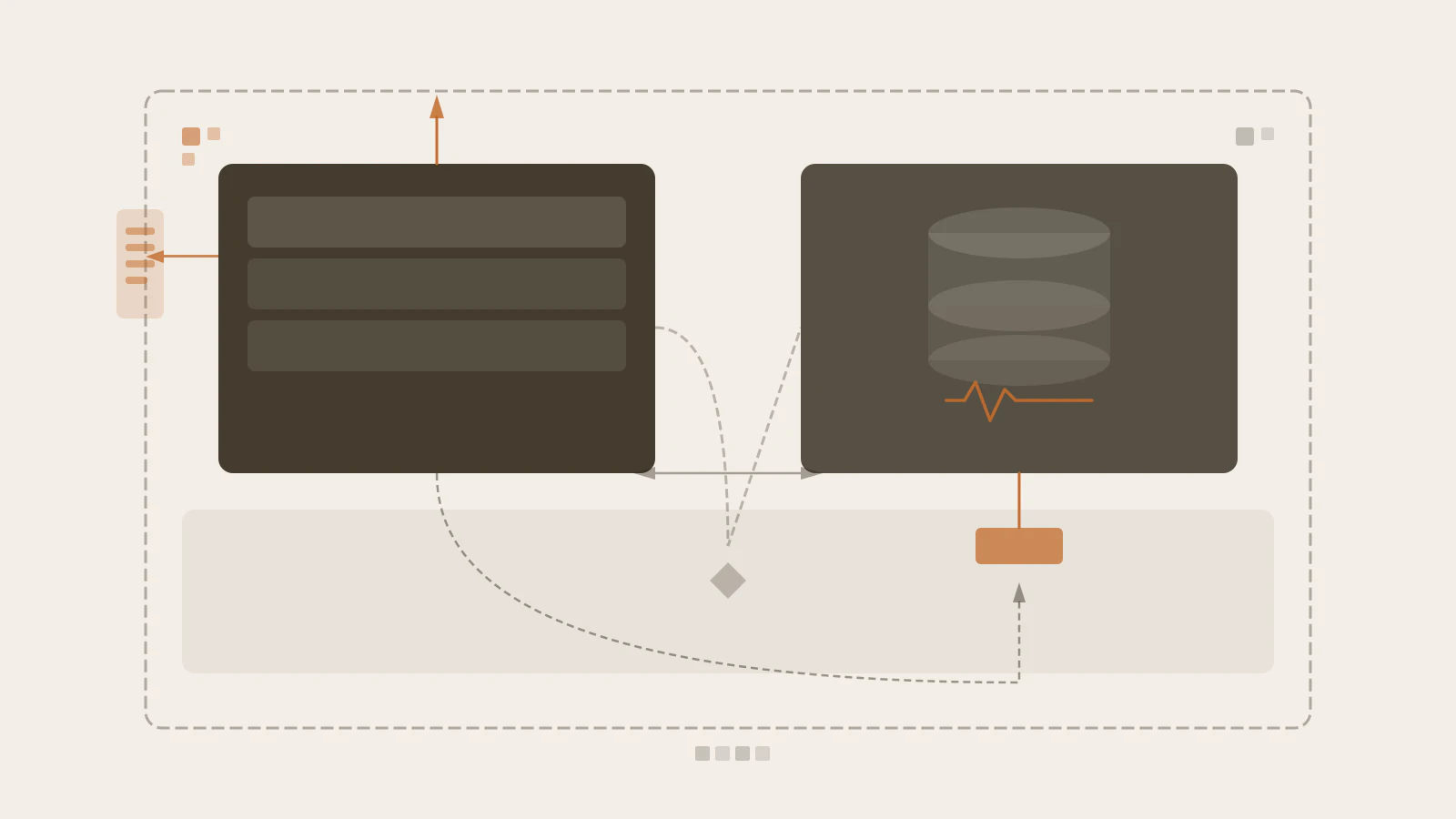
The web service and database service share a network. The database exposes a named volume for persistence; the web service uses a bind mount for live code sync.
Why depends_on alone isn’t enough
Here’s something that catches nearly everyone the first time: a container can be running before the service inside it is ready.
PostgreSQL starts its container, but the database process takes a few seconds to initialise. If your application tries to connect during that window, it fails — even if depends_on is in the Compose file.
depends_on with no conditions only waits for the container to be running, not for the service inside it to accept connections. The fix is condition: service_healthy.
The healthcheck block on the db service tells Compose exactly how to verify readiness:
healthcheck:
  test: ["CMD-SHELL", "pg_isready -U $${POSTGRES_USER} -d $${POSTGRES_DB}"]
  interval: 10s
  timeout: 5s
  retries: 5
  start_period: 30s
pg_isready is a tool that ships with PostgreSQL and reports whether the server is accepting connections. Compose runs this check every 10 seconds, times out after 5, and retries up to 5 times. The start_period gives the container 30 seconds of grace before failures start counting — useful because PostgreSQL occasionally does a slow initialisation on first start when it creates the database files.
Once the database passes the health check, Compose starts the web service. Adding restart: true to the dependency means that if the database restarts later (during development, maybe you changed a config), the web container will restart too, re-establishing its connection.
Before you continue: What do you think happens if your application crashes during startup because the database wasn’t ready, but you only have
depends_on: dbwith no condition? The container exits, Compose marks it as stopped, and it stays stopped unless you’ve set a restart policy. The healthcheck approach prevents the connection attempt from happening until the database is genuinely ready.
Check this before moving on
- Your
dbservice has ahealthcheckblock that actually tests database connectivity - Your
webservice usescondition: service_healthy, not just a baredepends_on: db - You’ve tested a fresh start: run
docker compose down -vthendocker compose upand confirm the app starts without connection errors
Volume mounts: hot-reload vs. data persistence
There are two different jobs volumes do in the example above, and it’s worth being clear about which is which.
Bind mounts (.:/app) link a directory on your host machine directly into the container. When you edit a file, the container sees the change immediately. This is how hot-reload works during development — your code changes appear in the running container without a rebuild.
The second volume entry, /app/node_modules, is a trick specific to Node.js. It prevents the host’s node_modules directory from being mounted over the container’s. The container keeps its own node_modules, installed when the image was built, while everything else in /app comes from your local machine.
Named volumes (postgres_data:/var/lib/postgresql/data) are managed by the container engine, not by a path on your machine. They survive docker compose down. Run docker compose down -v to remove them along with the containers.
| Volume type | Where it lives | Survives docker compose down? |
Best for |
|---|---|---|---|
| Bind mount | Your local filesystem | Yes (it’s just your files) | Live code sync, hot-reload |
| Named volume | Container engine storage | No (unless -v is omitted) |
Database files, persistent data |
Don’t use a bind mount for database files. Database engines assume they have exclusive control over their storage. Mounting a host directory there leads to permission problems and subtle corruption.
Keeping secrets out of the compose file
The env_file directive loads variables from a file into the container’s environment. Both services reference the same .env file in the example:
# .env
POSTGRES_USER=myapp
POSTGRES_DB=myapp_dev
POSTGRES_PASSWORD=devpassword123
DATABASE_URL=postgres://myapp:devpassword123@db:5432/myapp_dev
NODE_ENV=development
Commit a .env.example with placeholder values to your repository. Add .env to .gitignore. Anyone who clones the project copies the example, fills in their values, and runs docker compose up.
The double-dollar sign $${POSTGRES_USER} inside the healthcheck command is not a mistake. A single $ would be interpreted by Compose’s own variable interpolation before the shell sees it. The double sign escapes it so the shell receives a literal $POSTGRES_USER and expands it itself inside the container.
Common reasons the stack won’t start
Port already in use. If you have a local PostgreSQL installation running on port 5432, the db service can’t bind to it. Either stop the local service or change the host port mapping to something like "5433:5432".
Application fails to connect despite healthcheck passing. Check that the DATABASE_URL in your .env uses db as the hostname, not localhost. Inside the Compose network, each service is reachable at its service name. localhost resolves to the container itself, not to another service.
Volume permission errors. If a bind mount causes permission errors, the issue is usually a mismatch between the user inside the container and the file ownership on the host. The container runs as a specific user ID, and if the host directory is owned by a different one, writes fail. Check the Dockerfile for a USER directive and align it with your local user.
Database service restarts in a loop. The most common cause is a bad POSTGRES_PASSWORD or POSTGRES_DB value. Check the database container logs with docker compose logs db — PostgreSQL prints the error clearly.
Treat the compose file as your local infrastructure definition
Once you have a working compose.yaml, stop managing local dependencies manually. The file becomes the canonical description of what your application needs to run. New teammates get the same environment by default.
The practical next step is to make sure compose.yaml is committed to the repository alongside the code. If a service dependency changes — a new cache layer, a different database version — update the file and commit it. Everyone picks up the change the next time they run docker compose pull and docker compose up.
The one thing Compose doesn’t help with is secrets management beyond .env files. For anything more sensitive than a local development password, look into proper secrets management before moving toward shared or production environments.
Sources
- Networking in Compose — Docker documentation
- Control startup and shutdown order in Compose — Docker documentation
- Set environment variables in Compose — Docker documentation
- Services top-level element — Compose file reference
- Volumes top-level element — Compose file reference
- Use volumes — Docker Engine documentation